
Broker Import
Broker Import is execution-based and built for safe partial imports with duplicate protection.
Import flow
Section titled “Import flow”- Click a broker tile to open the native file picker.
- Select the matching broker export file.
- Review parsed preview rows and status badges.
- Keep or change the row selection.
- Click Import to process only selected rows.
Preview and selection behavior
Section titled “Preview and selection behavior”- Rows marked
Importedare already known and cannot be selected again. Select allandClear selectionapply only to importable rows.- Status
Openmeans the execution currently opens or adds to a position. - Status
Closedmeans the execution closes position size. - You can import a subset of rows in one run.
Behavior guarantees
Section titled “Behavior guarantees”- Already imported executions are detected and skipped.
- Repeated imports are idempotent for known rows.
- Matching executions can close open positions automatically.
Supported brokers
Section titled “Supported brokers”interactive-brokersvia Flex XML execution reportsscalable-capitalvia Transactions CSV security execution rowsbitpanda-fusionvia trade history CSV export
Interactive Brokers: Flex Query setup
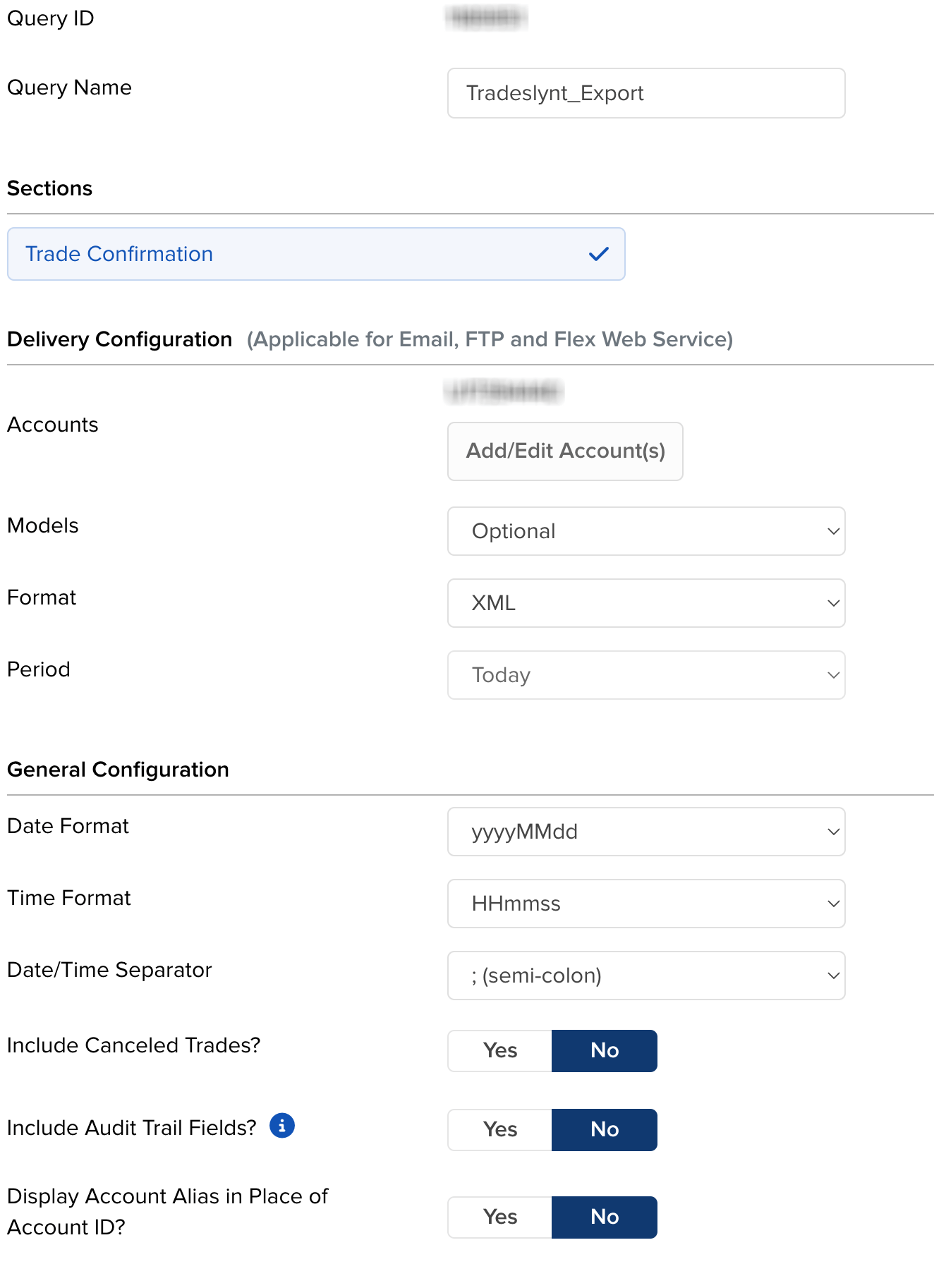
Section titled “Interactive Brokers: Flex Query setup”- In Interactive Brokers -> Performance & Reports -> Flex Queries -> Trade Confirmation Flex Query
- Click on ”+”
- Apply the settings as shown in the image below
- Save the Flex Query and run it
- Select the date range -> keep format “XML”
Import result counters
Section titled “Import result counters”After import, the app reports four counters:
imported_count: new trade rows created from selected executions.closed_count: existing open trades that were closed by matching executions.skipped_count: known executions skipped by duplicate protection.failed_count: rows that could not be imported due to parsing or validation issues.
If at least one trade was imported or closed, the app returns to Trades. Otherwise, the preview is refreshed so you can review remaining rows.
Mapping note
Section titled “Mapping note”If imported identifiers differ from chart symbols, map them in Settings so TradingView widgets resolve correctly without breaking reconciliation keys.
Troubleshooting
Section titled “Troubleshooting”No importable trades found
Section titled “No importable trades found”- Make sure you selected the correct broker tile before choosing the file.
- Verify the export type matches the broker format (for example Flex XML vs CSV).
- Check that the file actually contains execution rows (not account summary-only exports).
Import does nothing on re-import
Section titled “Import does nothing on re-import”- This is expected when all executions are already known.
- Known rows are skipped to keep imports idempotent and safe.
Existing open trades were closed automatically
Section titled “Existing open trades were closed automatically”- This is expected when selected executions match previously open imported positions.
- Matching uses broker/instrument execution identity and reconciliation rules, not chart symbol text.